
Softer light · Keep natural depth
Remove Shadow from Photo with a Simple Prompt
To remove shadow from photo backgrounds, products or faces, upload your picture and describe the dark patch. Ask for more even lighting while keeping the scene's natural depth, then compare the result with your original.
- Daily free credits
- No watermark
- Describe the shadow
Standard 1K edit: 1 credit · Compare details before use

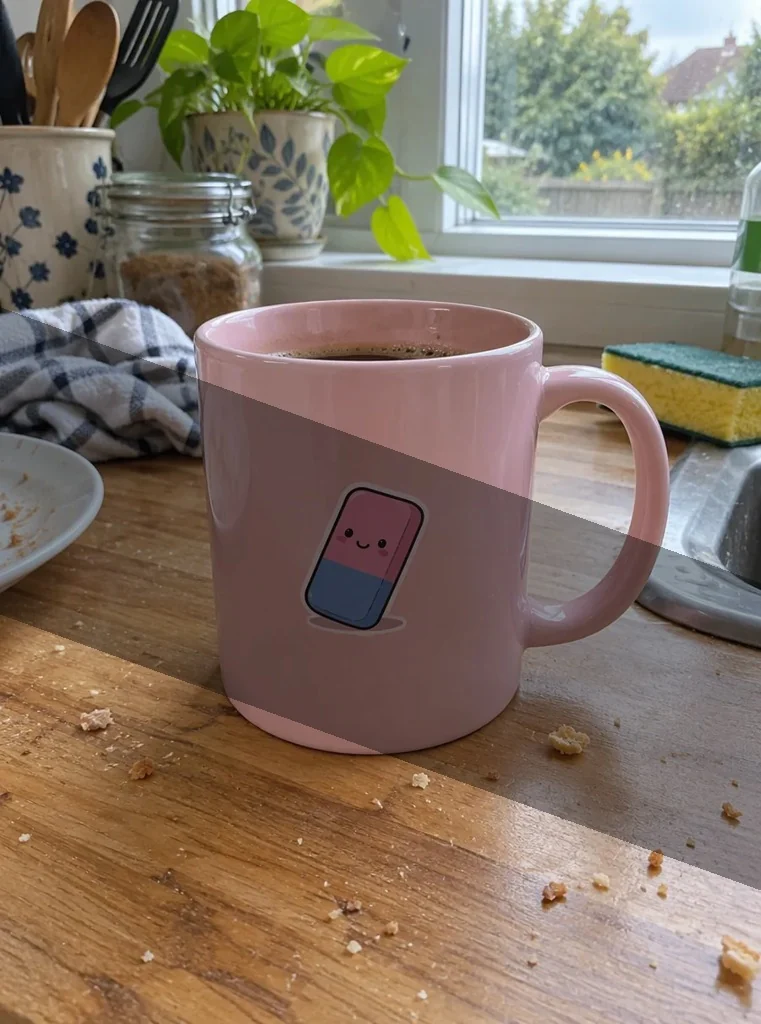
Prompt: “Remove the dark diagonal cast shadow across the photo. Use even natural lighting. Preserve the subject, colors, texture and background. Keep natural contact shadows.”
The input has a simulated cast shadow. The after image is an actual AI edit; inspect the design and surface detail before use.
More examples, with the details to check
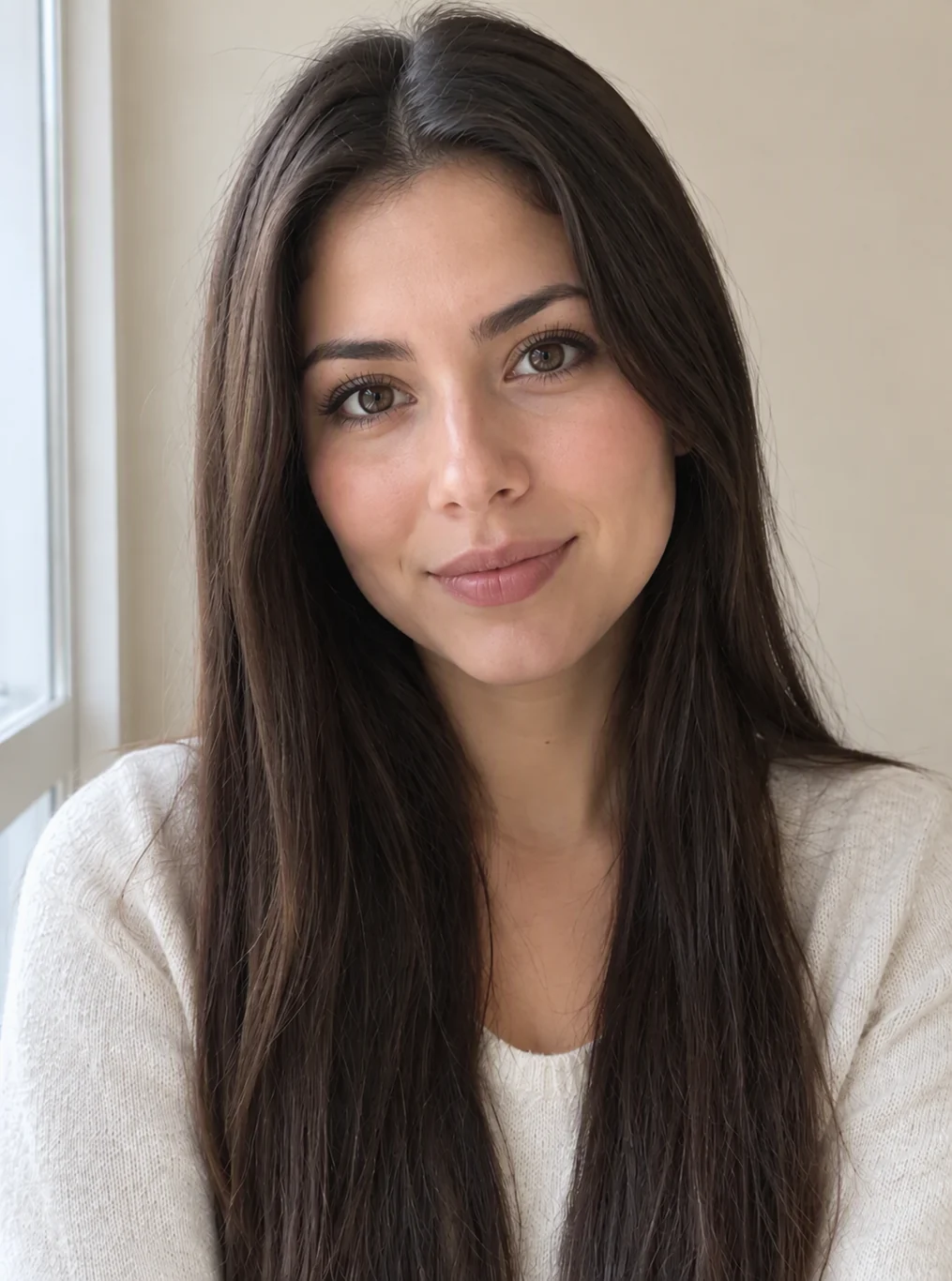
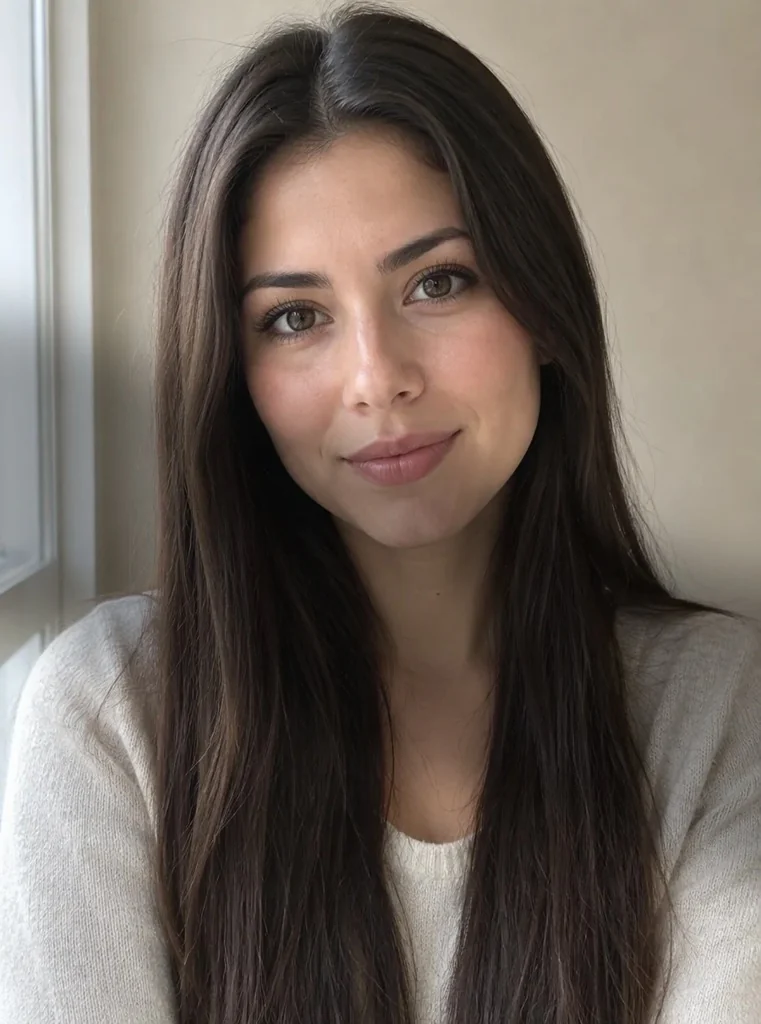
Controlled shadow on a sample portrait; the result may also change skin and hair detail.
Prompt: Remove the dark diagonal cast shadow across her face and hair. Use even natural lighting. Preserve the subject, colors, texture and background. Keep natural contact shadows.
How to remove shadows from pictures
When you remove shadows from photos, the aim is balanced light with some depth left in the scene. Begin with the original camera file when you have it. A brightened screenshot loses some of the detail that could help the edit.
Upload the photo with the unwanted shadow
Choose a JPG, PNG or WebP. Look for the darkest part of the shadow before uploading. If you can still see texture there, the model has more clues to work from. A completely black patch requires it to invent what was hidden.
Describe the shadow and the lighting you want
Name its position, its subject and what should stay: "remove the diagonal shadow across the mug; keep the printed design and the kitchen background." You describe the area in words. There is no need to draw around it. Mention whether you want soft daylight or neutral studio lighting.
Check the result before downloading
Compare color, surface texture and the transition from the repaired area into its surroundings. On a face, check the eyes, nose and hairline. If the photo becomes too flat, start from the original again and ask to reduce only the harsh shadow while retaining gentle facial shading.
Match the instruction to the shadow
Products on a table
A window frame or your phone can cast a dark band across a product. Ask to remove that band and preserve the object's material, edges and printed design. Keep the soft shadow directly underneath the object when it helps the product sit naturally on the table. For a catalog cutout instead, use the background remover.
Faces and portraits
To remove shadow from face photos, identify the actual problem: a hat brim across the eyes, a diagonal stripe across a cheek, or a strong shadow on one side. Ask for balanced light rather than a new face. A request for brighter skin everywhere can wash out highlights and change the appearance of the person.
Clothing and travel photos
Broad shadows can hide fabric folds or divide a white dress into two tones. Describe the cast shadow separately from the garment's own folds. In an outdoor scene, keeping some directional light helps the buildings, people and ground remain consistent. If a person or object is the real distraction, try the object removal tool.
Photographed paper
For a page with a phone shadow, request even lighting and unchanged words, numbers and layout. Recheck every important character afterward. Generative editing can redraw lettering even when the paper looks cleaner. For receipts, measurements or any record where exact text matters, retaking the picture in diffuse light is often the more dependable choice.
Shadow removal prompts to adapt
Replace the location and subject in these examples. One clear lighting instruction is easier to judge than a request to improve everything at once.
| Prompt | What to inspect afterward |
|---|---|
| Remove the diagonal cast shadow across the mug. Keep its print, reflections and the counter unchanged. | The printed artwork, handle and shiny rim |
| Soften the shadow across her cheek and hair. Keep natural skin texture and the existing face. | Eyes, skin texture and the hairline |
| Remove the dark band across the jacket. Preserve the denim weave, seams and buttons. | Fabric texture and the white shirt underneath |
| Balance the lighting on the dress while keeping its folds and the outdoor setting. | Garment shape and consistency with the scene |
| Remove the phone shadow from the paper. Preserve every word, number and the page layout. | All text and small symbols |
| Reduce the harsh wall shadow behind the product. Leave a soft contact shadow beneath it. | The product outline and its connection to the surface |
If the shadow is lighter but still visible, decide whether the remaining depth looks natural before running another edit. A second pass can also alter details that were already right. Keep the original as a reference and download any version you want to retain.
Keep depth, texture and believable light
A cast shadow comes from something blocking the light. Form shading is the gradual darkness around a curved cheek, a folded sleeve or the side of a cup. Removing both can make the subject look cut out. Tell the editor which cast shadow to reduce and which natural shading to retain.
This is generative photo editing. It creates a plausible view of a brighter surface; it does not recover a second exposure from your camera. Small logos, hair strands, skin detail and the objects behind a deep shadow can change. Review the result at its actual size before using it in a shop listing or a portrait.
If the whole image needs a different setting, the background changer addresses that larger edit. A shadow correction is more focused: start with the lighting problem, compare it, and make any additional change separately.
Try a shadow edit with daily free credits
Guests receive three credits per day, and signing up gives you five daily credits. Standard 1K editing uses one credit for each attempt. The allowance refreshes every 24 hours without carrying unused credits forward. Free downloads have no watermark.
Upload limits are 20 MB for free use and 50 MB with a paid plan. Subscriptions and credit packs unlock larger output options; check the pricing page for the cost of your selected size and quality. If a task fails, the credits used for that task return automatically.
Questions about shadow removal
How can I remove shadow from photo files online?
Upload the picture, describe where the unwanted shadow falls, and request more even lighting. Add the details you want preserved, such as the product label, skin texture or wall color. Compare the generated copy with the original before downloading. You work in the browser, and the source file on your device stays untouched.
Can I remove shadow from face pictures without changing the person?
You can ask for the lighting to change while keeping the existing face, but identical features are not guaranteed. The model rebuilds parts of the image and can alter skin, hair or facial detail. Inspect the eyes, mouth and hairline closely. A lighter shadow with visible detail is a better starting point than a face hidden in darkness.
Should I remove every shadow in a product photo?
Usually you should keep some natural shading. A soft contact shadow beneath a cup or shoe helps show its shape and position on the surface. Target the distracting cast shadow instead, such as a dark window stripe or phone silhouette. Ask for gentler lighting if the first version makes the product look flat or detached from the table.
Is the shadow remover free to try?
Yes, within the daily credit allowance. Visitors without an account get three credits, while a free account gets five. At standard quality, a 1K attempt takes one credit; its download has no watermark. Other sizes and quality settings have different credit costs. Each new attempt spends credits, so compare the first result before requesting another version.
Can it clean shadows from a photographed document?
It can attempt to even out the paper lighting, but you must check the text against the original. Letters, numbers and small marks may be reconstructed incorrectly. Keep the unedited photo, particularly for records you need to verify later. If exact wording is essential, retake the page with even light or use a document scanning workflow.
Why does the corrected area look different?
The dark region may have contained too little information to preserve its original texture or color. The model fills it with a plausible surface. It can also interpret a vague request as a broader lighting change. Retry from the original with the shadow's location and a short preservation instruction, and retain the version that best matches the scene.
Related tools

Erase Unwanted Objects from Any Photo
Remove unwanted objects from photos online. Describe what to erase, like wires, trash or a sign, and AI fills the gap to match the scene. Free daily.

Remove the Background from Any Photo
Remove the background from any image online. Get a clean cutout on a transparent background, then add a new scene with a prompt. Free daily edits.

Recolor an Image by Describing the Object and Color
Recolor an object in your image with a prompt. Preview new colors for mugs, clothes and other objects while checking texture and lighting. Free daily credits.

AI Photo Editor
Upload a photo and type what to change. Remove objects, swap backgrounds, fix blur and restore old photos with an AI image editor online. Free daily edits.
Start with the shadow that distracts you
Name the dark patch, ask for balanced light, and judge the details beside your original.