
Remove people from photos · Free daily
Remove Unwanted People from Your Photos
To remove person from photo backgrounds, describe who should go: "the man in the red jacket on the left". The AI rebuilds the scene behind them, and Edit again picks up anyone it missed on the first try.
- No watermark on free edits
- Commercial use
- Edit again on any result
A standard 1K edit uses 1 credit · Failed edits are refunded

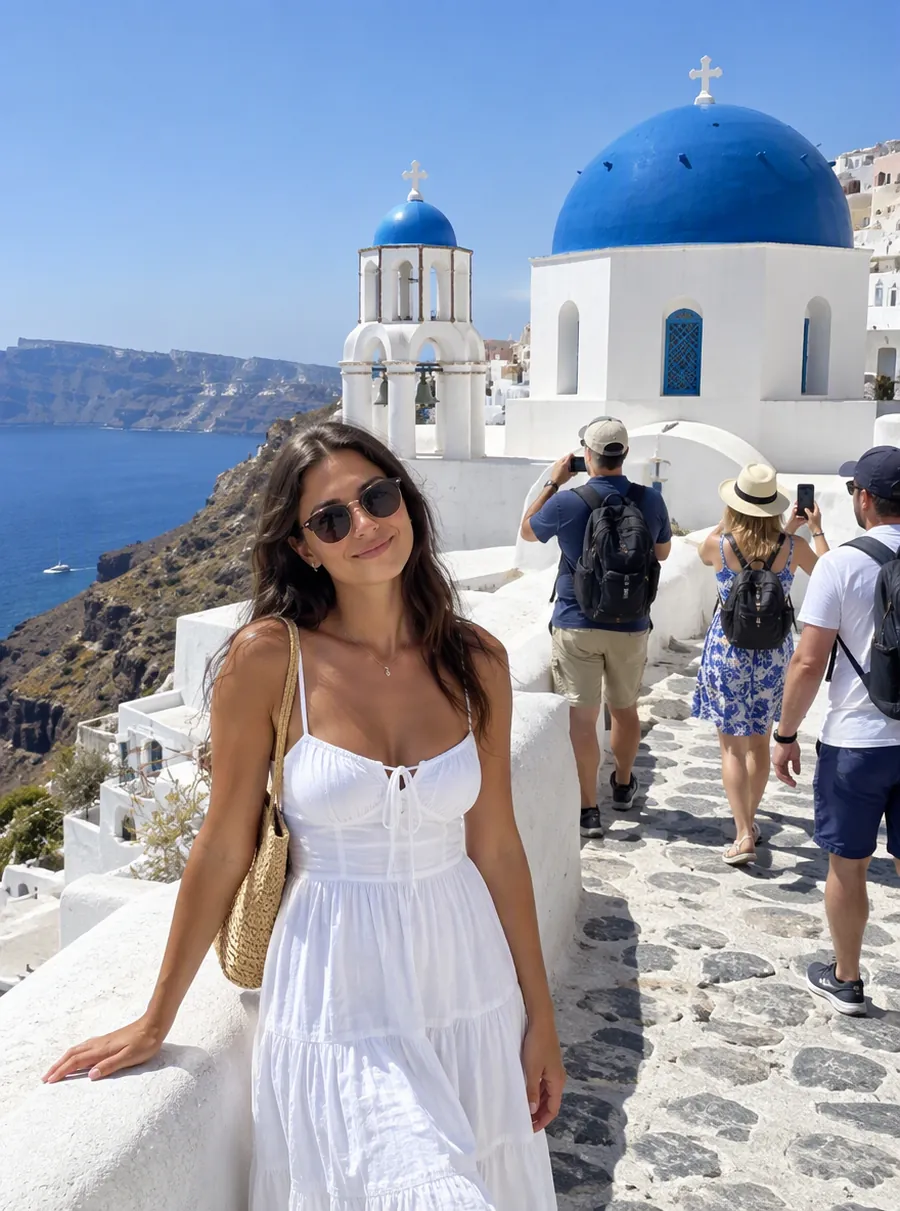
Prompt: “Remove the three tourists in the background”
How to remove someone from a picture
Add the photo
Upload a JPG, PNG or WebP from your computer, or paste it in with Ctrl+V. Group shots and wide travel scenes both work, as long as the person you want gone is clearly visible.
Point them out in words
Describe position, clothing and what the person is doing: "Remove the woman in the yellow raincoat walking behind the couple." Specific words matter more with people than with objects, because a frame full of faces offers plenty of wrong guesses.
Check the space they left
Look at what replaced them. Railings, horizons and building lines should run straight through the gap; a bend or a smudge there is a sign to try again with a clearer sentence.
Repeat for the next person
Hit Edit again to continue from the cleaned version. Taking people out one at a time keeps each change small, and small changes are easier to judge.
Crowds, photobombers and travel shots
Removing people from photos mostly comes down to a few familiar situations.
- Photobombers. Someone pulled a face behind your friend, or walked through the frame at the worst moment. A single person standing apart from you is the easiest case.
- Tourists at landmarks. A monument with a dozen strangers in front of it. Name them by area, such as "everyone on the steps", or a few at a time; packed scenes usually take more than one round.
- Event and street photos. A waiter crossing behind a toast, a passerby at the edge of a portrait, a neighbor's kid running through a backyard shot.
- An ex. It happens. A great vacation picture can stay a great picture without them; say where they stand and what they are wearing.
You can erase people from photos taken years ago as easily as from yesterday's. Older, grainy prints simply leave the AI less detail to continue, so expect to look a little harder at the result. When a picture has a whole album's worth of strangers, you can remove someone from photo after photo with the same kind of sentence, adjusting only the position and clothing.
Keep the people you want
The bigger risk is rarely leaving a stranger in. It is touching the people you meant to keep. Many tools you find when searching "ai remove person from photo" have you mark each stranger by hand; here you describe them instead, which also means you can say who must stay.
- Name who stays. "Remove the man on the right, keep the two women in the center unchanged."
- Use positions that cannot be confused. Left, right, front, back, behind the bench, at the very edge of the frame.
- Mention clothing and color. "The person in the black cap" is clearer than "the guy".
- Avoid broad groups when your main subject stands among them. "Remove everyone else" is wide enough to clip someone you wanted.
The usual goal is to remove people from background areas while the main subject stays as they were. The AI aims to keep the people you did not name as they are, but faces, hands and hair are the details to check before you post or print.
Prompts you can copy
Copy a line, then change the clothing, colors and positions to match the people in your shot. Every erase person from photo prompt here follows the same pattern: who, where, and anything that should stay.
| Prompt | What it does |
|---|---|
| Remove the man in the blue shirt behind the couple | Takes out a photobomber standing behind your subjects |
| Remove the two tourists on the left side of the fountain | Clears strangers from one side of a landmark |
| Remove the person walking at the right edge of the frame | Erases a passerby who is cut off by the border |
| Remove the woman in the green dress, keep everyone else | Takes one guest out of a group and leaves the rest |
| Remove the people sitting on the steps and continue the stairs | Empties a staircase and tells the AI what to fill in |
| Remove the man on the far left and his shadow | Takes out a person along with the shadow they cast |
When the result needs a second pass
Be realistic about the hard cases. Removal goes best with one person, standing apart, in front of simple scenery. These situations often need a second round with Edit again:
- Large figures. Someone close to the camera who covers a third of the frame leaves a big hole, and what fills it is the AI's best guess.
- Overlapping people. When an arm or shoulder crosses your subject, the line where they meet is the hardest part to rebuild.
- Crowds. Ten strangers in one prompt can leave a few behind or half gone. Take them in groups of two or three.
- Leftovers. A stray shadow, a foot, a bag on the ground. Name the leftover directly in the next prompt.
Each extra round is an ordinary edit, and a standard one at 1K uses 1 credit. If an attempt fails outright, its credits return to your account on their own.
For things rather than people, such as a bin or a parked car, the object remover has its own prompt list. If the whole setting is crowded, it can be simpler to replace the background than to erase each figure. Captions and shop signs, finally, are covered by the text remover.
FAQ
How to remove someone from a picture?
Upload the picture, describe the person by place and clothing, and run the edit. "Remove the boy in the striped shirt on the right" is the kind of sentence that works. The AI fills in what was behind them. If part of the person remains, use Edit again on the result and name what is left.
How to remove a person from a photo?
Name the one person to go and, if others are close by, say who stays. A sentence such as "remove the woman on the left, keep the man in the center" sets both at once. Then view the gap at full size: straight lines, railings and horizons are where a weak fill shows first.
How to remove people from photos?
For several people, work in small batches rather than all at once. Start with the largest or closest figure, check the fill, then use Edit again for the next group. Busy landmark shots may take three or four rounds. Each standard 1K round uses 1 credit, so plan your daily credits around that.
How to remove person from photo online free?
Open AI Image Edit in your browser; there is nothing to install and no account needed to begin. Guests have 3 free credits a day, a free account has 5, and both refresh every 24 hours. Free edits download at 1K without a watermark, which makes this a people remover from photo free of charge for everyday shots.
How to remove someone from a photo and keep the rest the same?
Keep the request narrow. Name only the person who should go, and add "keep everything else the same" at the end. The AI aims to leave the rest of the picture alone; still, it repaints the area around the gap, so compare faces, text and edges with the original before you share it.
How to erase people from pictures without an app?
You do not need to install anything. If you were looking for an app to remove people from background shots, this tool runs on the web and takes a typed sentence: upload, describe who to erase, download. Results can be used commercially, which matters when the picture is headed for a shop page or a rental listing.
Related tools
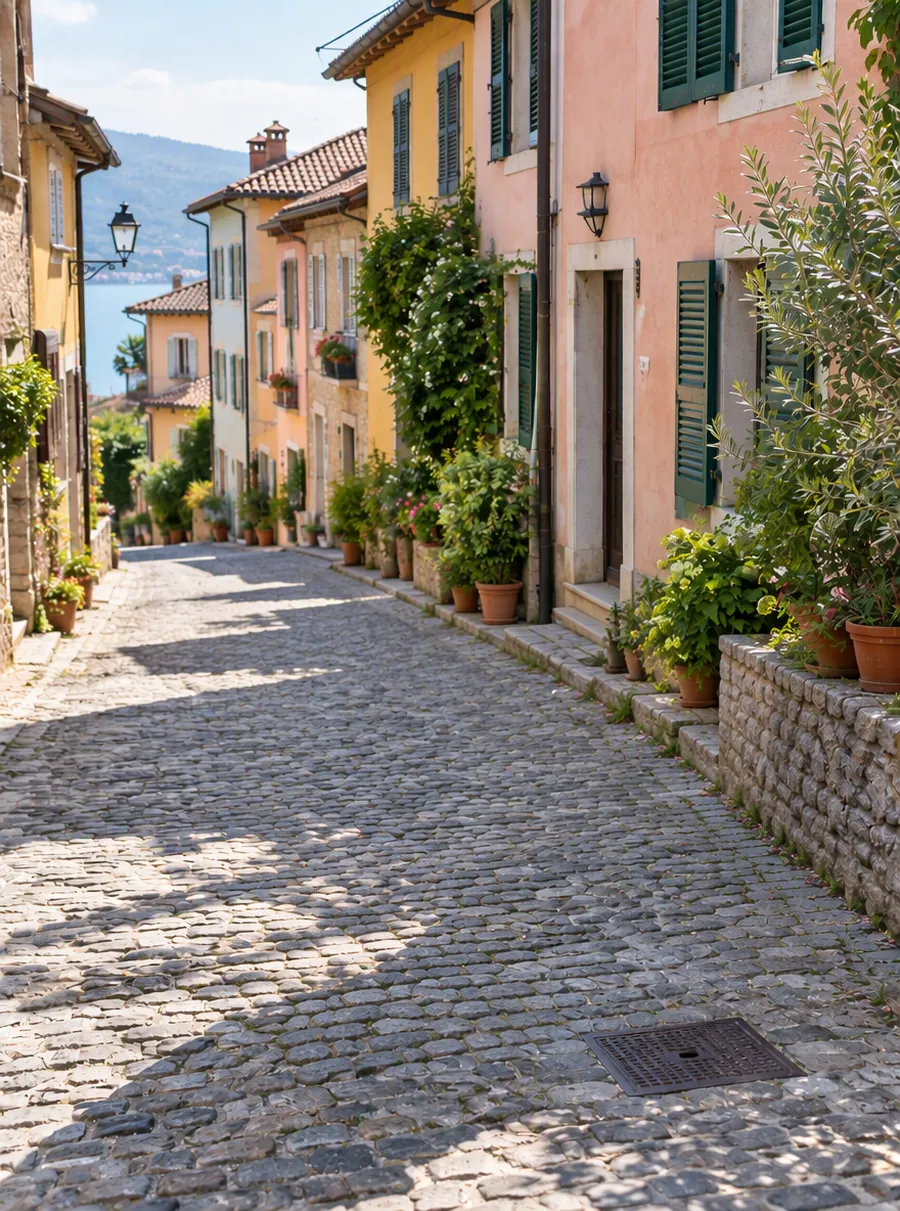
Erase Unwanted Objects from Any Photo
Remove unwanted objects from photos online. Describe what to erase, like wires, trash or a sign, and AI fills the gap to match the scene. Free daily.
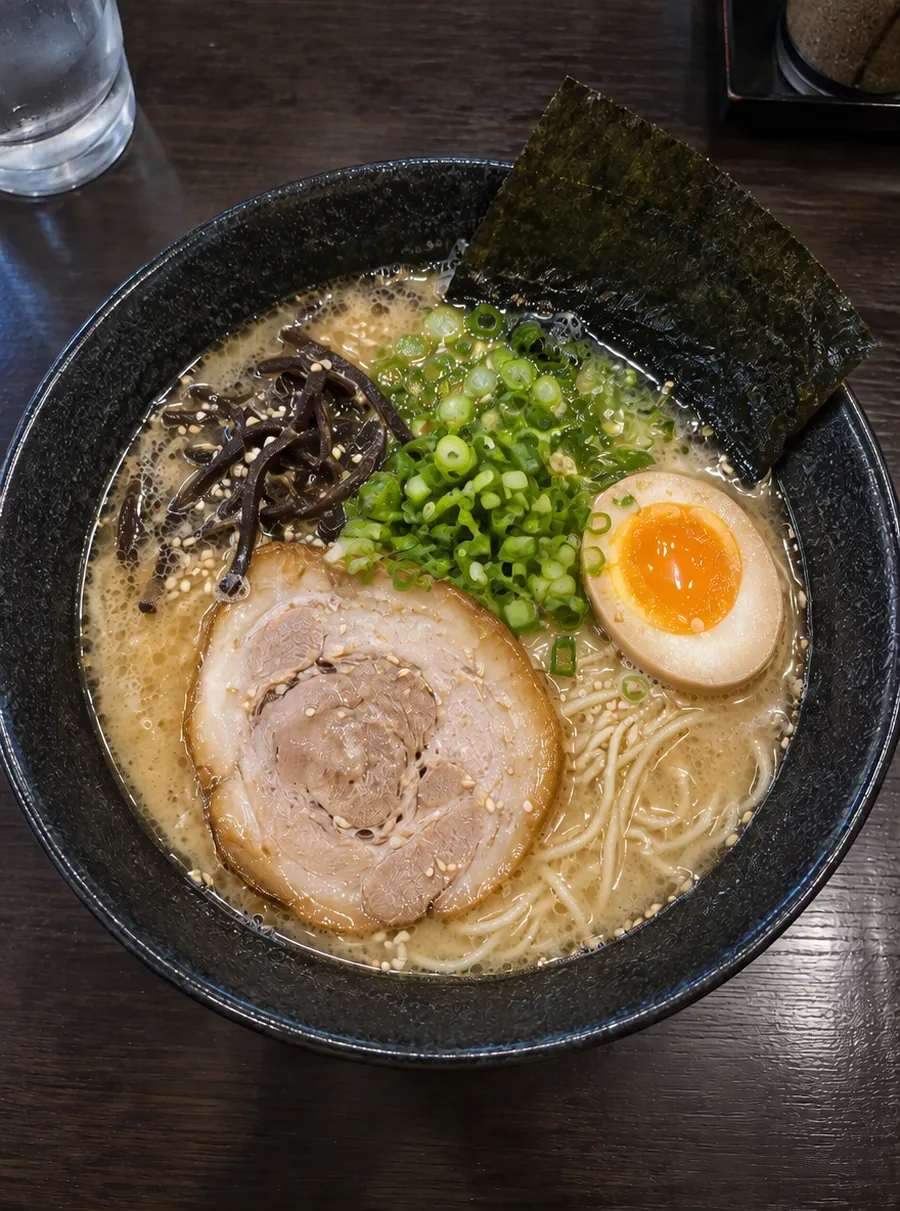
Erase Words and Captions from a Picture
Remove text from an image online. Erase captions, date stamps and labels while AI rebuilds the background behind them. Upload, describe, download.
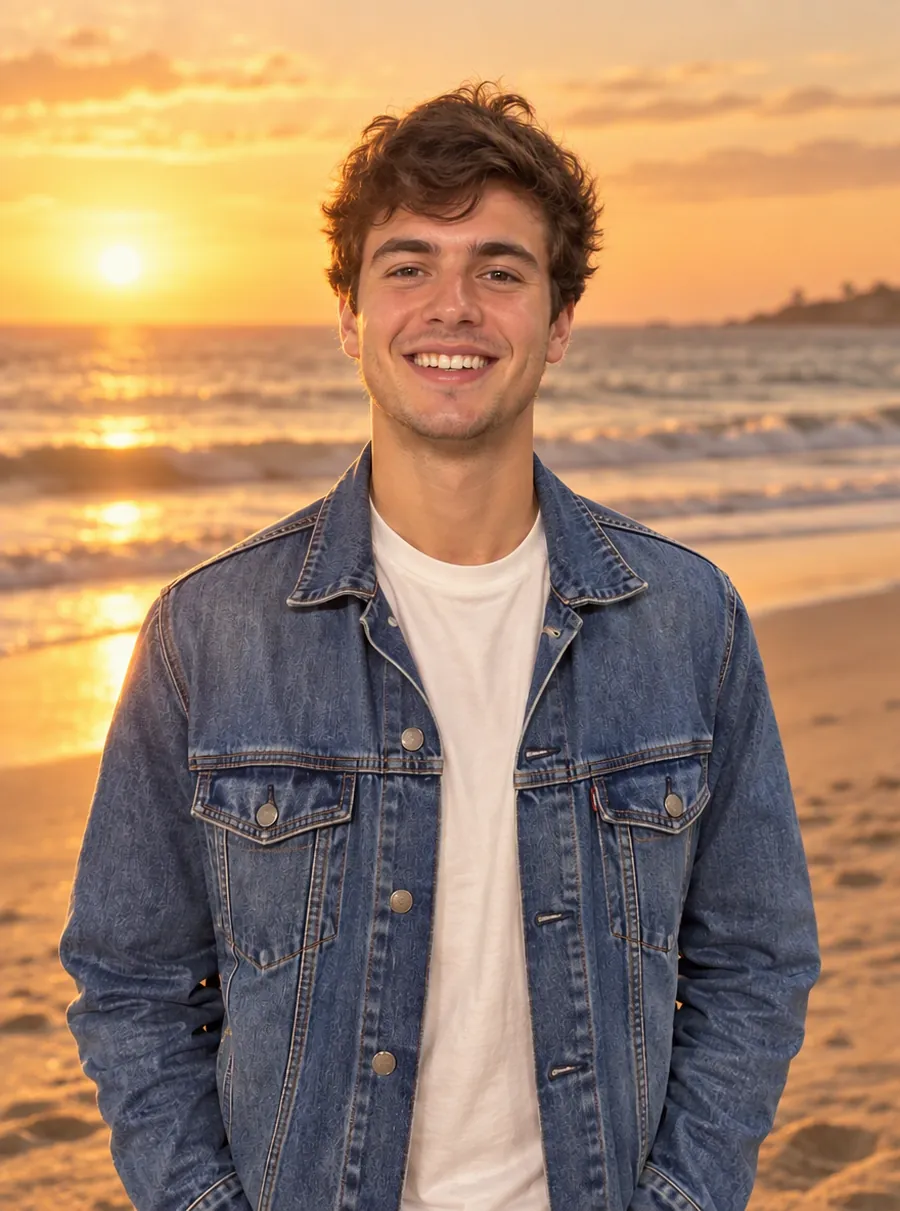
Change a Photo's Background by Describing the Scene
Change the background of a photo with a text prompt: plain white, a sunset beach or a modern office. AI builds the new scene around your subject.
AI Photo Editor
Upload a photo and type what to change. Remove objects, swap backgrounds, fix blur and restore old photos with an AI image editor online. Free daily edits.
Take the stranger out of your favorite shot
Upload it, say who should go, and keep the moment you actually meant to capture.