
Scratches · Tears · Stains · Fading
AI Photo Restoration for Old and Damaged Pictures
Upload a scan of an old print and say what is wrong with it: scratches, a torn corner, a water stain, faded tones. AI photo restoration rebuilds the damaged areas and gives you a cleaner copy, while your original file stays as it was.
- No watermark
- Commercial use
- Keep editing the result
Your original scan is never changed · Failed edits return their credits
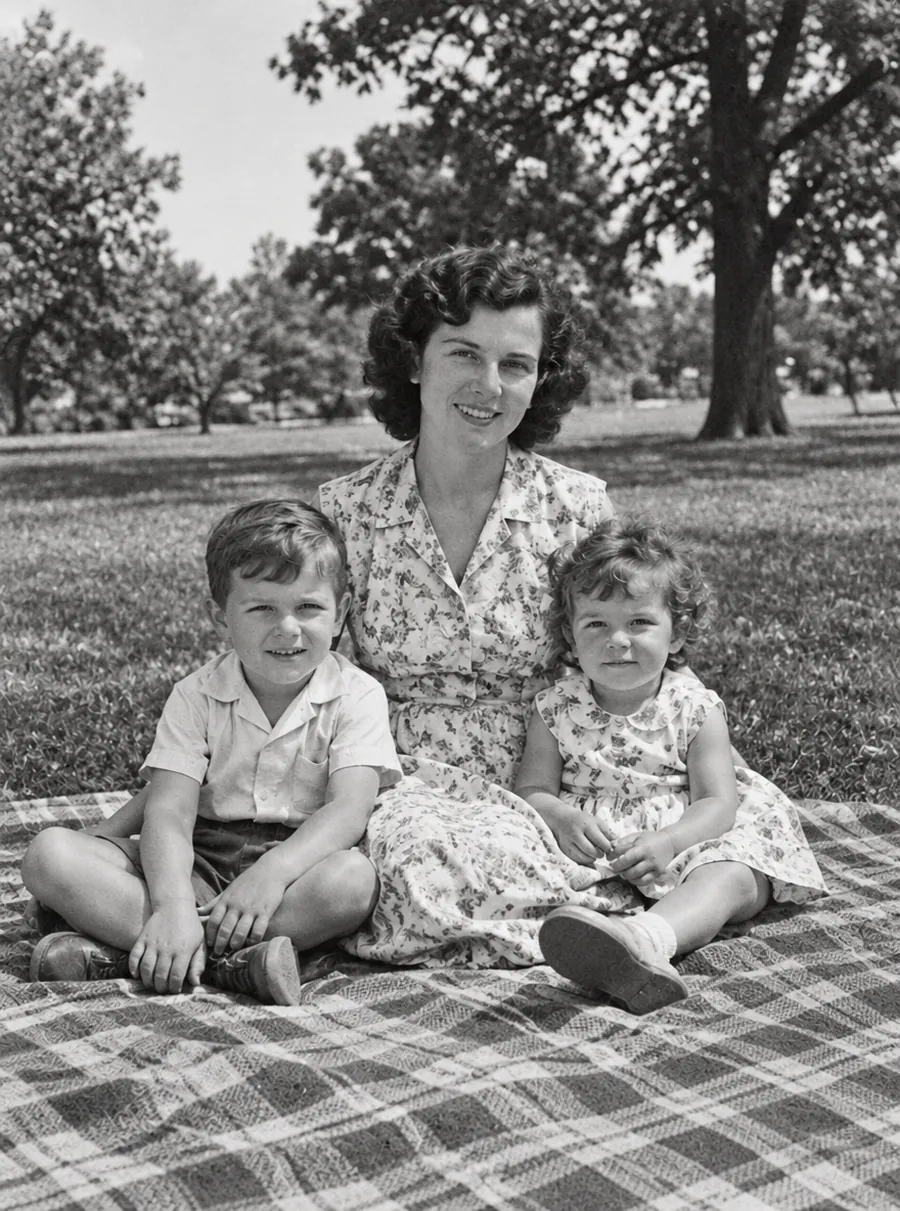
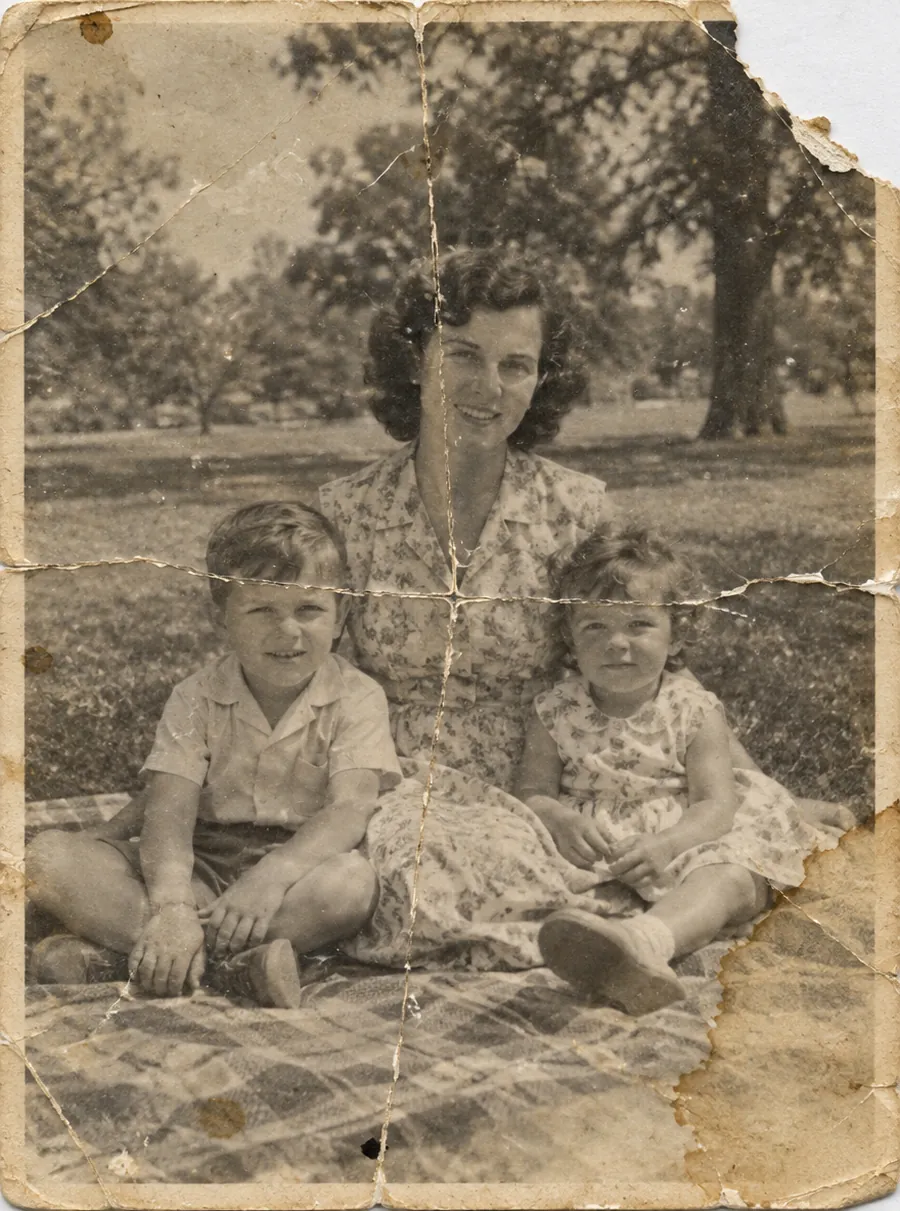
Prompt: “Restore this old photo: remove creases, tears and stains”
How to restore old photos
The short answer: make a clean digital copy, tell the AI what is damaged, compare the result with the print, and keep both files. Here is each step in a little more detail.
Digitize the print
Scan it on a flatbed scanner, or photograph it flat in soft daylight with your phone. The better this copy, the less the AI has to guess. Section 5 below covers both routes.
Upload it and name the damage
Add the file to the tool and write one plain sentence about what needs fixing, for example "remove the scratches and repair the torn corner". Naming the actual problems works better than a vague "make it look new".
Compare against the original
Zoom in on faces, hands, lettering and the edges of any repaired patch. If something looks wrong, reword the request and run it again, or press Edit again to fix one leftover spot on top of the new version.
Download and keep both files
Save the restored copy next to the scan, never over it. The scan is your source; the restored file is one version of it that you can redo later with a better prompt.
Scratches, tears, stains and fading: what old photo restoration can fix
Most prints from a family album suffer from the same handful of problems. This is how each one behaves when you restore photos with AI, and what to type for it.
- Scratches and dust. Thin white lines and specks from years in a shoebox. The texture around each line gives the AI plenty of clues about what belongs underneath.
- Tears and creases. A fold across a sky or a plain wall is the simpler case. A tear through a face is harder, because the AI has to rebuild an eye or a mouth it cannot see.
- Stains and spots. Water marks, tape residue and foxing, the small brown age spots on old paper. Mention the stain's color and where it sits so the AI knows what to remove.
- Fading and color casts. Prints from the 1960s and 1970s often drift toward orange, yellow or magenta. Ask it to "restore natural contrast and remove the yellow cast".
- Blur and softness. A slightly soft scan can be sharpened. A print that was out of focus on the day it was taken has no detail left to recover, so any sharpness the AI adds is new. For blur on recent digital photos, the unblur tool is the better fit.
What AI restoration rebuilds, and what it makes up
Picture restoration with AI is reconstruction, not recovery. Where a scratch crosses a cheek, the model looks at the skin around it and fills in a plausible patch. Where half a face has been torn away, it draws a face that fits the rest of the picture, and that face may not belong to the person who sat for the photo.
The same is true of writing and backgrounds. A shop sign, a date on a calendar, the street behind a wedding party: the AI can produce letters and buildings that look convincing and are simply invented.
So treat every result as a restoration, not a historical record. Three habits keep that clear:
- Keep the original scan untouched and store it alongside the restored copy.
- For genealogy or archive work, note in the file name or caption that the photo was restored with AI.
- When a face matters, check it against other photos of the same person before you print or share it.
Scan or phone photo: getting a good input
You do not need special equipment, but the input sets the ceiling. The AI can only work with the detail your copy actually captured, and it treats glare or shadow as part of the damage.
With a flatbed scanner
Scan standard prints at 600 dpi and small wallet-size ones at 1200 dpi. Wipe the glass first, because every speck of dust turns into one more spot to fix. Switch off the scanner's own dust removal and auto color so you start from an honest copy.
With a phone camera
Lay the print flat on a table near a window, in indirect daylight so the light is even across the whole surface. Turn off the flash, hold the phone directly above and parallel to the print, and move until no glare crosses it. Fill the frame so the print covers almost all of the picture.
Before you upload
Crop away the table, the album page or the scanner lid around the print. If the file is over the upload limit, save it as a high-quality JPG instead of PNG; the difference will not show after restoration.
Restoration prompts you can copy
Start with one of these and change the details to match your photo. Short and specific beats long and general, and one problem per sentence is easier for the AI to follow.
| Prompt | What it does |
|---|---|
| Remove the scratches and dust spots, keep everything else the same | Cleans surface damage without touching faces or tones |
| Repair the torn top-left corner and the crease across the middle | Rebuilds the missing corner and smooths out the fold line |
| Remove the brown water stain on the right side | Lifts one stain while keeping the paper texture around it |
| Restore the faded contrast and remove the yellow cast | Brings back deep blacks and clean whites in a dull print |
| Sharpen the faces slightly but keep the film grain | Adds definition without a smooth, plastic look |
| Fix the damage but leave the photo black and white | Repairs the print without adding any color |
If the first prompt fixes most of it, press Edit again and describe only what is left, such as "remove the last scratch above her shoulder". Building on the result you like is safer than starting over, because a fresh run can change areas that were already fine.
Restore, then colorize
Color should come last. If you add color to a scratched print, the AI may tint the scratches as if they were part of the scene, so a white line turns into a pale streak on a jacket. Repair the damage first, check the clean black-and-white copy, and then colorize it as a second step.
Working in that order also leaves you with three files worth keeping: the original scan, the repaired gray version and the color one. Relatives often prefer different versions, and it is good to be able to restore pictures for one person without redoing the work for another.
Restore old photos online free, every day
There is no photo restoration app to install; everything happens in your browser. If you were looking for old photo restoration online free of charge, this is what you get:
- 3 free credits a day as a guest, with no account, or 5 a day once you sign up for free.
- The count refreshes every 24 hours; credits you skip do not pile up for later.
- Free results come out at 1K, roughly a 1024-pixel long edge, and carry no watermark.
- If a restoration fails, its credits are returned to your balance on their own.
A paid plan unlocks 2K and 4K output for larger prints, takes uploads up to 50 MB for high-resolution scans, and stores your results for 180 days instead of 7.
FAQ
How to restore old photos without a scanner?
Use your phone. Lay the print flat near a window with soft daylight, switch off the flash, hold the phone parallel to the print and fill the frame. Check for glare before you take the shot. Then upload it, describe the damage in one sentence, and compare the result with the print in your hand. A careful phone copy is enough for most family snapshots.
Best AI photo restoration tools 2026: what should you compare?
Compare results on your own damaged photo, not on a demo gallery. Then check four things: whether free downloads are watermarked or shrunk, whether you can say what to fix instead of pressing a single button, whether you can keep editing the result, and whether the tool is open about inventing missing detail. Torn faces show the biggest differences, so test one of those.
Best free AI photo restoration tools 2026: what does free get you here?
Plenty of sites promise AI photo restoration online free, then shrink or watermark the download. Free here means 3 credits a day without an account or 5 with a free one, and the allowance resets every 24 hours. Restored photos download at 1K with no watermark, which suits screens, sharing and small prints. For anything bigger than a postcard, 2K or 4K output on a paid plan gives you more room before the print looks soft.
Best AI tools for photo restoration 2026: one tool or several?
One tool covers most of the job if it takes written instructions. Repair the damage here, use Edit again to tidy what is left, and add color to the clean copy as a separate pass. A dedicated unblur or upscale step only helps when the repaired file is still too soft or too small for what you plan to do with it.
Best photo restoration software 2026: do you need a desktop program?
Not for most family photos. Desktop photo restoration software gives you manual control over every pixel, which matters for museum work or a print that is badly broken. For scratches, stains, creases and fading, describing the fix in a sentence is far easier to learn and needs no install. Keep the desktop route for the few photos the AI cannot handle.
Will AI change the faces in my photo?
It can. The AI aims to keep the faces it can see, but where a face is scratched, torn or blurred it has to fill in missing parts, and those parts are a guess. Compare the result with the original and with other photos of that person. If a face drifts, add "keep the faces unchanged" to your prompt, or fix one problem per run instead of everything at once.
Does restoring a photo change my original file?
No. The tool works on a copy, and the scan on your computer or phone is never touched. Results are stored for 7 days on free use and 180 days on paid plans, so download the versions you want to keep. Save the restored file next to the original rather than replacing it, and give it a name that shows it was restored.
Can I print or sell restored photos?
Yes. Edits can be used commercially, so a restored photo can go into a printed family history, a memorial program or a local history book you sell, as long as you hold the rights to the original image. Before ordering a large print, check the pixel size: 1K suits small prints, and 2K or 4K output holds up better in a frame.
Related tools
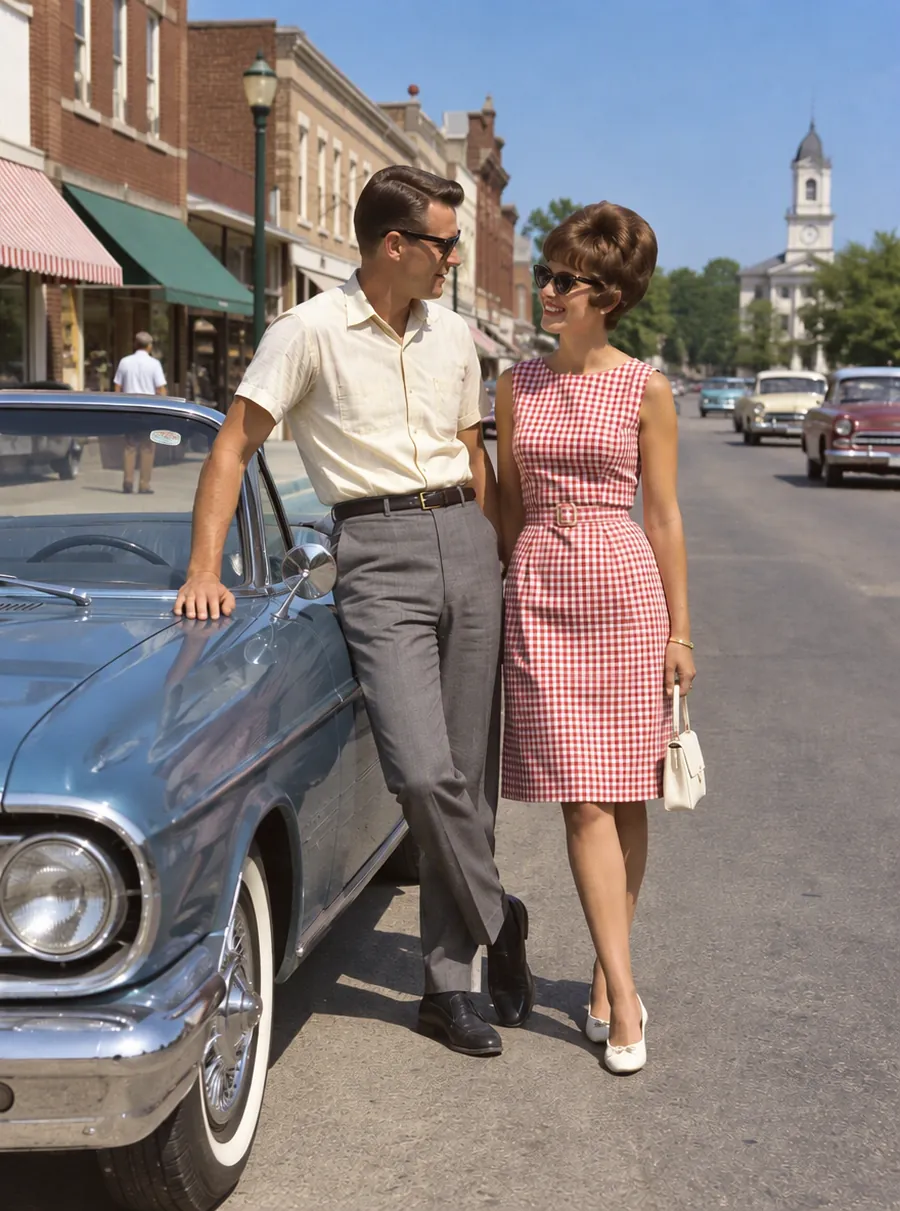
Add Color to Old Black-and-White Photos
Colorize black and white photos online. AI adds natural skin, sky and clothing colors to old pictures, and a short prompt lets you steer the result.
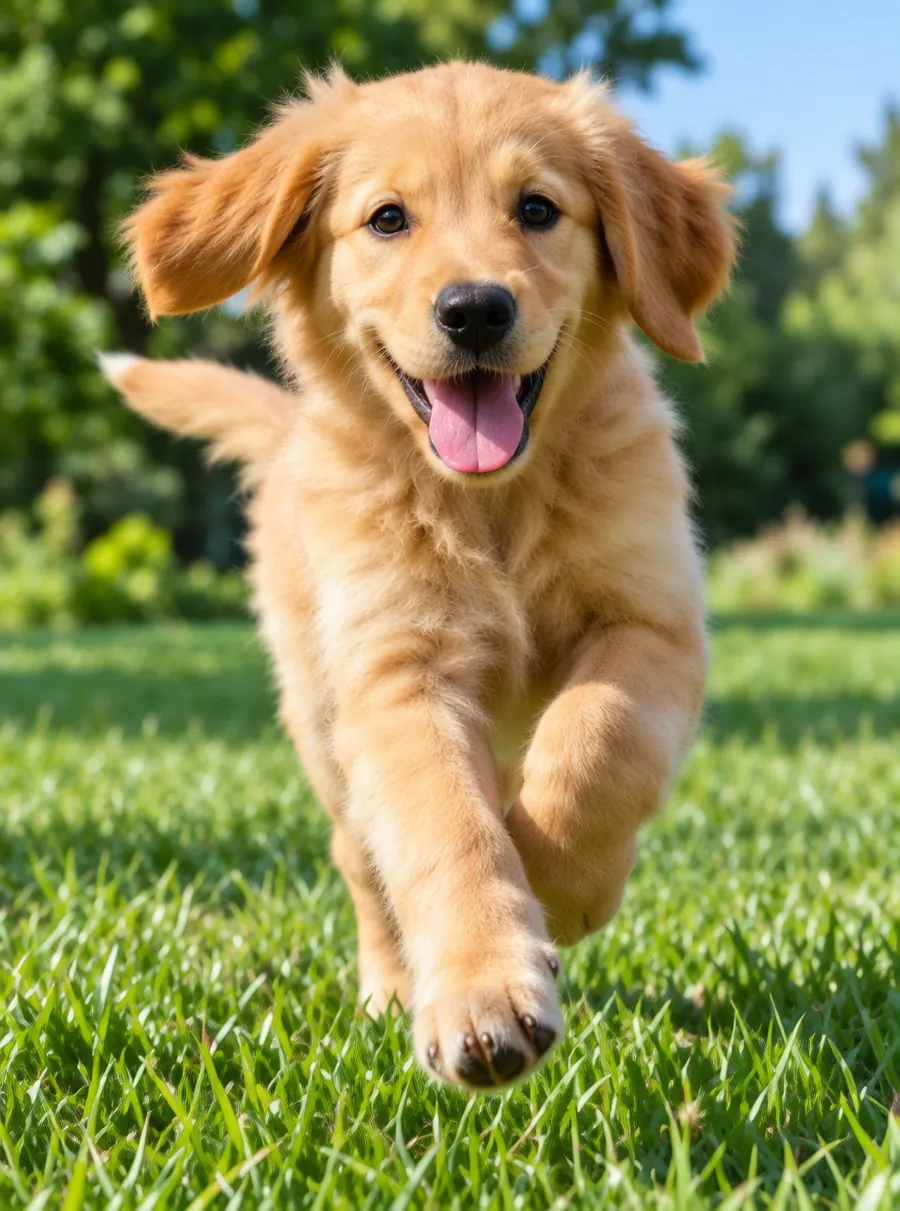
Make a Blurry Picture Clear Again
Unblur images online with AI. Fix motion blur, soft focus and camera shake, then download a sharper photo. Nothing to install, with free daily edits.

Enhance Photo Quality with AI
Enhance photo quality online. Fix dull color, noise, soft detail and low light in one pass, then download a cleaner version of your picture. Free daily.

AI Photo Editor
Upload a photo and type what to change. Remove objects, swap backgrounds, fix blur and restore old photos with an AI image editor online. Free daily edits.
Give an old print a second life
Scan it, describe the damage, and keep the original safe next to the restored copy.