
Image enhancer · No watermark · No install
Enhance Photo Quality with AI
Run the AI photo enhancer free in your browser: upload a picture and get back finer detail, truer color, less noise and better light in one pass. Add a short prompt when one problem matters most.
- Enhance to 1080p free
- No watermark
- Commercial use
No account needed
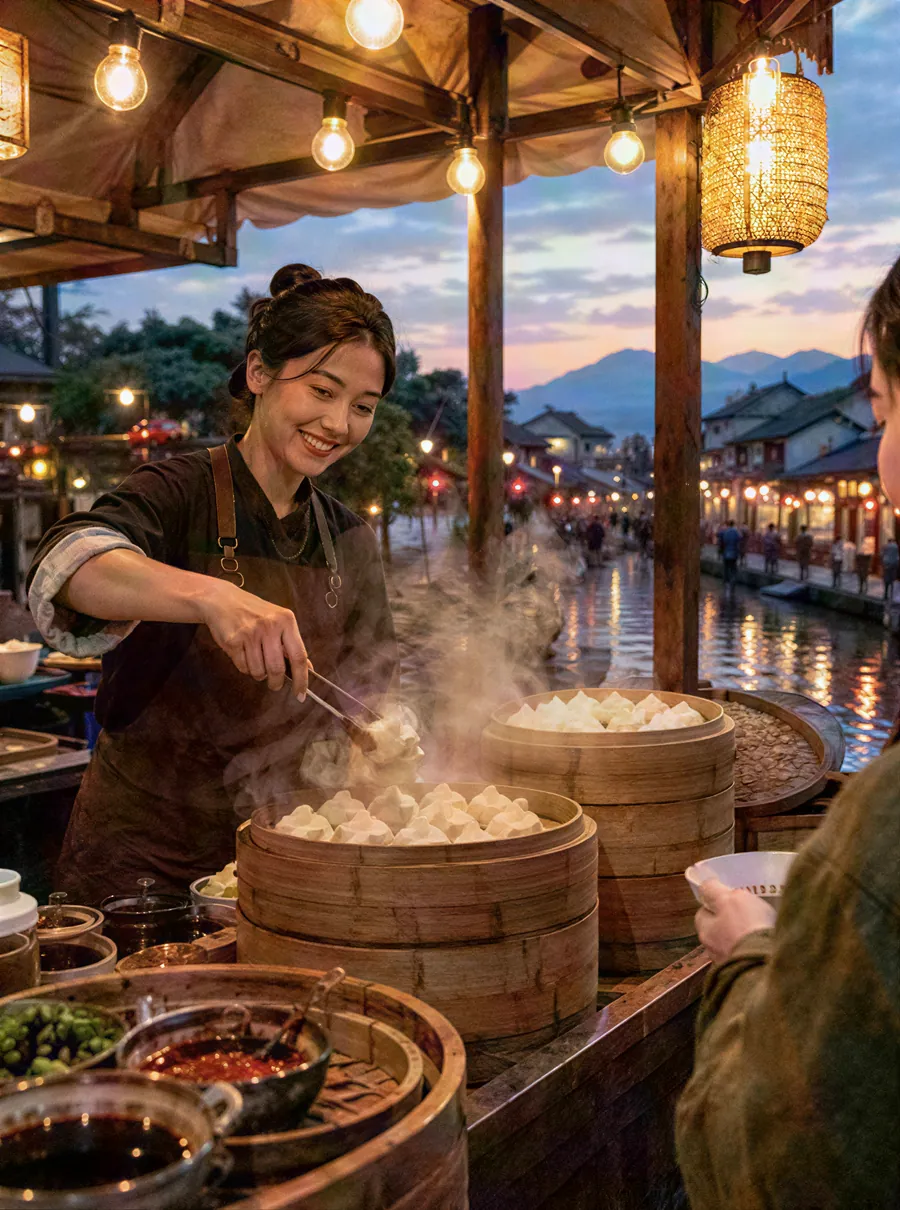

How to enhance a photo in three steps
Add your picture
Upload the file or paste it with Ctrl+V. The least compressed copy you own works best; a picture pulled from a messaging app or a social feed has already lost detail that now has to be guessed back.
Say what bothers you, or leave it blank
With no prompt, the enhancer balances everything at once. If one thing matters more, write it down in plain words, such as "too dark", "colors look flat" or "lots of grain from my phone", and add what should not change.
Check skin, sky and shadows, then download
Zoom in before you save. Faces should still have texture, skies should not band into stripes, and dark corners should not turn blotchy. If something drifted, tap Edit again and request just that one correction, then download the version you like.
What gets better: detail, color, noise, light
People call it an AI image enhancer, an image quality enhancer or a photo fixer. Underneath, four separate problems get worked on together, and knowing which one you have makes your prompt sharper.
Detail
Hair, eyelashes, fabric weave and leaves are the first things lost to a cheap lens or heavy compression. The enhancer rebuilds that fine structure so the picture stops looking smudged when viewed on a laptop or a large phone.
Color
Faded prints, gray winter light and mixed indoor bulbs all leave color looking flat or tinted. Enhancing restores contrast and pulls skin, food and foliage back toward believable tones without pushing them into cartoon saturation.
Noise
Grain shows up when a phone raises its sensitivity in poor light. It looks like colored speckles in shadows and plain walls. The enhancer smooths that speckle while trying to keep real texture, which is the hard part any photo quality enhancer has to balance.
Low light
Restaurant tables, evening parties and dim living rooms produce murky shots. Enhancing lifts the shadows and evens out exposure so faces read clearly, though a nearly black frame has very little information to recover.
Prompts worth copying
You do not need a prompt for an AI enhance image pass, but a few words of direction help when one fix matters more than the others. Each of these is ready to paste, and you can change the nouns to fit your own photo.
| Prompt | What it does |
|---|---|
| Brighten this dark photo and reduce the noise | Lifts shadows in an evening or indoor shot and cleans the grain that comes with them |
| Fix the dull, washed-out colors | Brings back contrast and saturation in a flat or faded picture |
| Make the colors richer but keep skin tones natural | Adds punch to clothes, food or scenery while protecting faces |
| Clean up the grain, keep the fine detail in the hair | Reduces speckle without wiping away strands and texture |
| Enhance the detail in the fabric, keep the lighting as it is | Useful for product shots where texture is what sells the item |
| Even out the light on her face, do not smooth the skin | Softens harsh shadows in a selfie while leaving pores and freckles alone |
Enhance portraits and selfies
Faces are where an enhancer earns trust or loses it. A good result looks like the same person on a better day; a bad one looks airbrushed. The AI aims to keep each person's features, eye color and expression while it cleans up the image around them, but you should still compare the face closely before you post or print it.
- Selfies from a front camera tend to be noisy and soft. Ask for less grain and clearer eyes, and add "do not smooth the skin" if you want to keep a natural look.
- Group photos shrink every face to a few dozen pixels. Expect the people at the back to change the most, and check them one by one.
- Profile and dating pictures benefit most from better light. A prompt like "brighten my face, keep the background as it is" is often enough.
- Pet portraits respond well to detail recovery in fur and whiskers, as long as the eyes were roughly in focus to begin with.
If the problem is that the camera shook or missed focus, enhancing alone will not fix it. That is a job for a different tool, covered next.
Enhance vs upscale, and where unblur fits
Enhancing and upscaling get mixed up because both make a photo look better on screen. Enhancing improves the pixels you already have: more detail, cleaner color, less grain, better exposure. Upscaling increases the number of pixels, taking a picture to 1080p, 2K or 4K so it can be printed or shown on a big display without turning blocky. Unblurring is the third case, for streaks from movement and subjects that came out soft because focus landed elsewhere.
| You want | Start with |
|---|---|
| Better color, less noise, brighter shadows | Enhance, on this page |
| A larger file for print or a 4K screen | Upscale |
| Sharp edges on a shaky or misfocused shot | Unblur |
| Scratches, creases and fading on an old print | Photo restoration |
Need more pixels than the enhancer delivers? Take the result to the image upscaler and pick a bigger size. When the trouble is movement or a missed focus point, the unblur tool rebuilds edges in a way enhancing does not. Old family pictures with cracks, stains or torn corners belong in photo restoration, which repairs damage before improving quality.
For a photo with several problems, a sensible order is to remove blur, then enhance, then enlarge as the final step.
Enhancing on free daily credits
One enhance to 1080p costs 1 credit. Guests start every day with 3 credits and no sign-up, while a free account receives 5, so a handful of photos a day costs nothing. Credits refill 24 hours after you claim them, and leftover ones expire instead of stacking. The result has no watermark and can go on a shop page or a flyer, since commercial use is allowed.
Using this image enhancer free is the normal way to start. Paid plans, from $9.99 a month for 250 credits, mainly help when you have a lot of photos or need 2K and 4K output from the upscaler. Free files stay in your history for 7 days and paid ones for 180, and if an enhance fails, the credit is refunded without you asking.
FAQ
How to enhance a photo?
Upload it, optionally add one sentence about the main problem, and let the enhancer run. Compare before and after at full size, paying attention to faces and skies, then download. If one thing is still off, such as color that turned too warm, run Edit again on the result with a prompt about only that.
How to enhance image quality?
Fix the biggest weakness first. Noise, dull color and dim exposure are what enhancing handles well; motion blur belongs to the unblur tool and small dimensions to the upscaler. Starting from the original file also matters, because every round of compression strips detail that the AI then has to reconstruct.
What is the best photo enhancer tool?
The one that improves your own picture without making it look fake. Test any tool on a photo you know well: skin should keep its texture, logos and text should not change shape, and colors should stay believable. Then check what you can actually download before paying, including the size and whether a watermark is added.
What is the best free photo enhancer tool?
Judge a free option by the file you can keep. Here a guest gets three enhances a day at 1080p and a free account gets five, each one download-ready with nothing stamped on it. Some free tools only show a preview, shrink the download or add a logo until you upgrade, so read the small print first.
Best AI photo enhancer 2026
In 2026 many enhancers produce similar raw results, so the practical differences are control and cost. Can you steer the result with words, retry one area, and see the credit price before you click? Here you can type a plain-English request like "brighten the shadows, keep skin natural" and refine the outcome with Edit again.
Best free AI photo enhancer 2026
Look for three things: a daily allowance rather than a one-off sample, downloads without a watermark, and an honest statement of output size. This tool gives all three at 1080p. If you later need a 2K or 4K file, the upscaler offers those sizes on paid plans, starting at $9.99 a month.
Will enhancing change how someone looks?
It aims to keep each person's features while cleaning up skin, eyes and hair. Small or very low-quality faces can drift, so compare them closely before you post or print. Adding "keep the face unchanged" or "do not smooth the skin" to your prompt keeps the enhancer more conservative with portraits.
Does enhancing make the picture bigger?
Enhancing targets 1080p, which suits phones, social posts and web pages. For a large print, a 4K monitor or a store listing with deep zoom, send the enhanced file to the upscaler and choose 2K or 4K; those sizes come with paid plans and use 2 or 3 credits.
Related tools
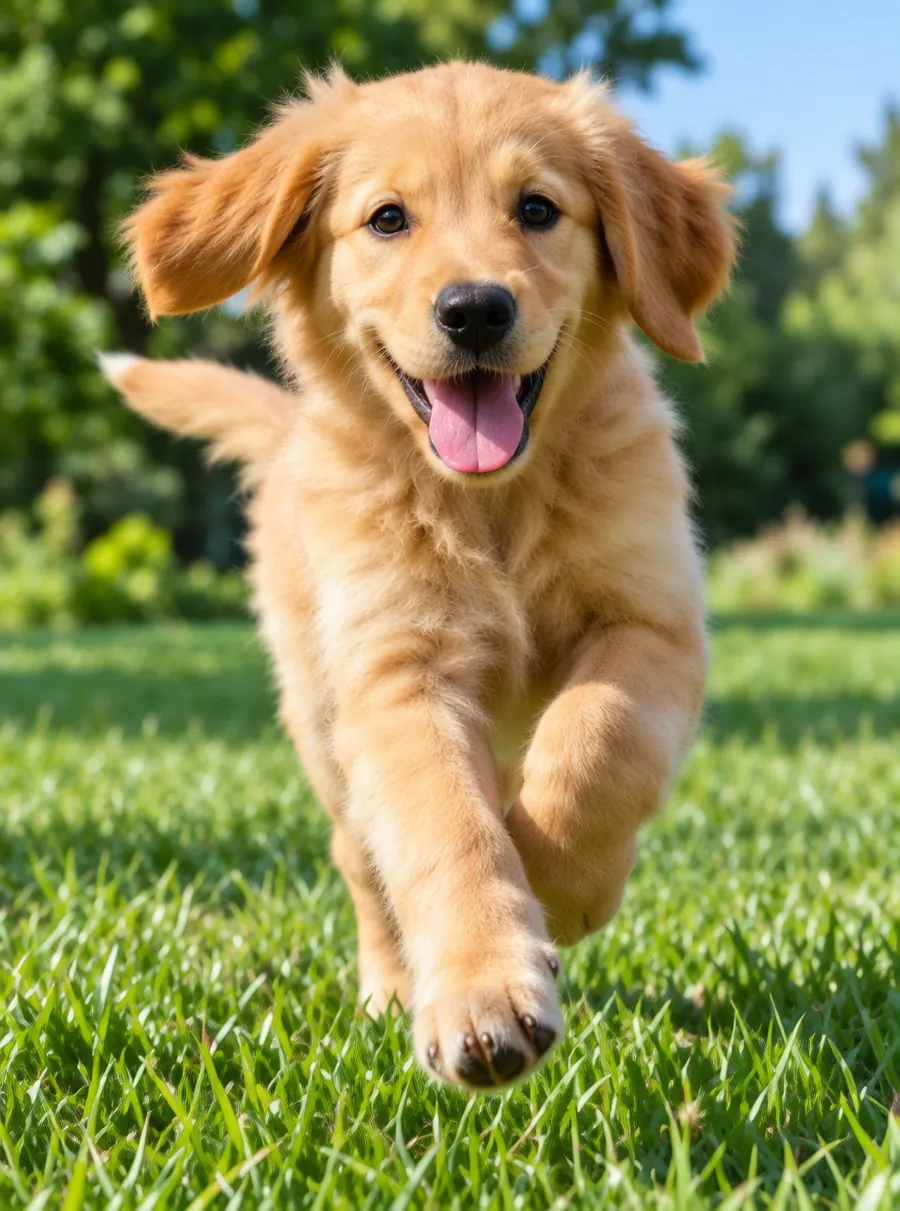
Make a Blurry Picture Clear Again
Unblur images online with AI. Fix motion blur, soft focus and camera shake, then download a sharper photo. Nothing to install, with free daily edits.
Upscale Photos to a Higher Resolution
Upscale images online with AI. Enlarge small photos to 2K or 4K and keep edges crisp instead of blocky. Upload, pick a size, download. Free daily edits.
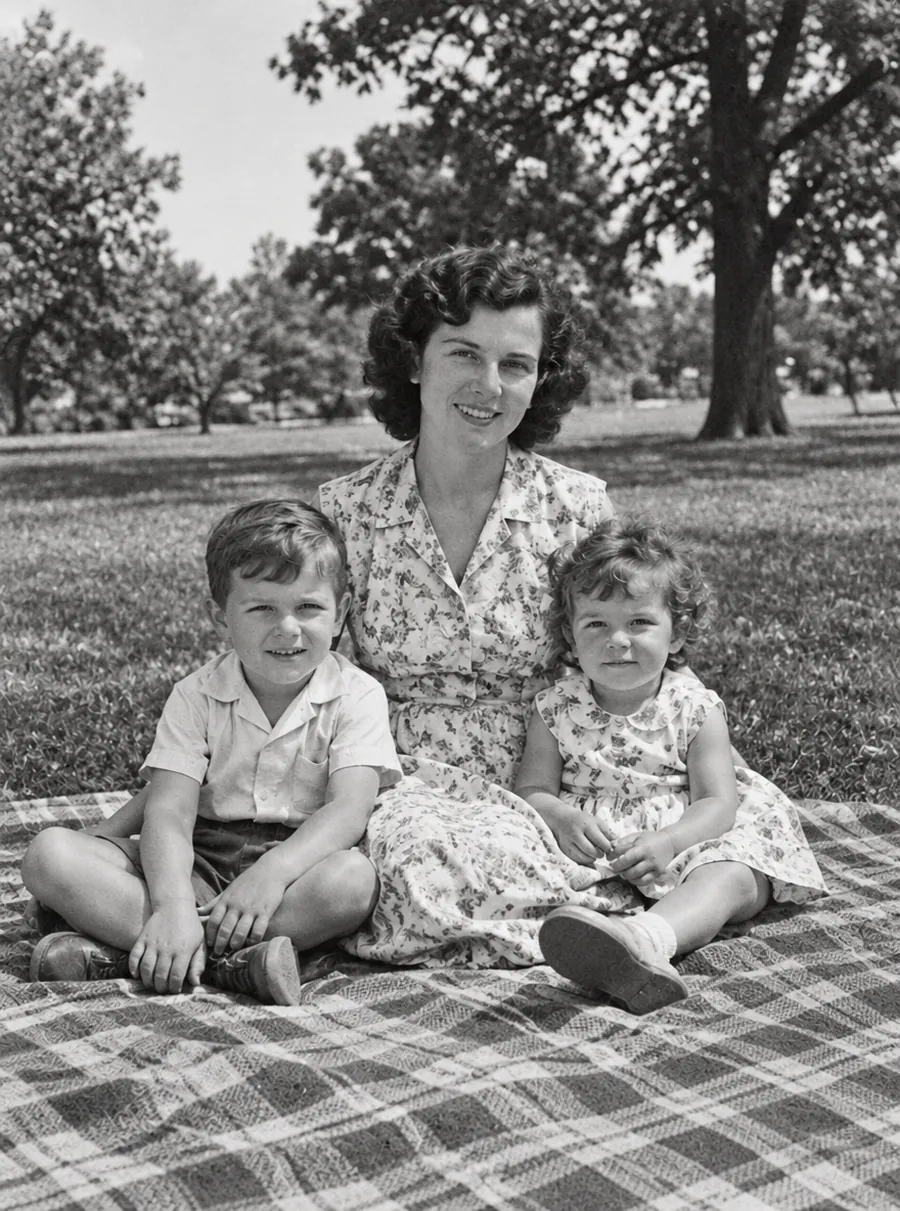
AI Photo Restoration for Old and Damaged Pictures
Restore old photos online with AI. Repair scratches, tears, fading and blur on scanned prints, then add color if you like. Free daily edits included.
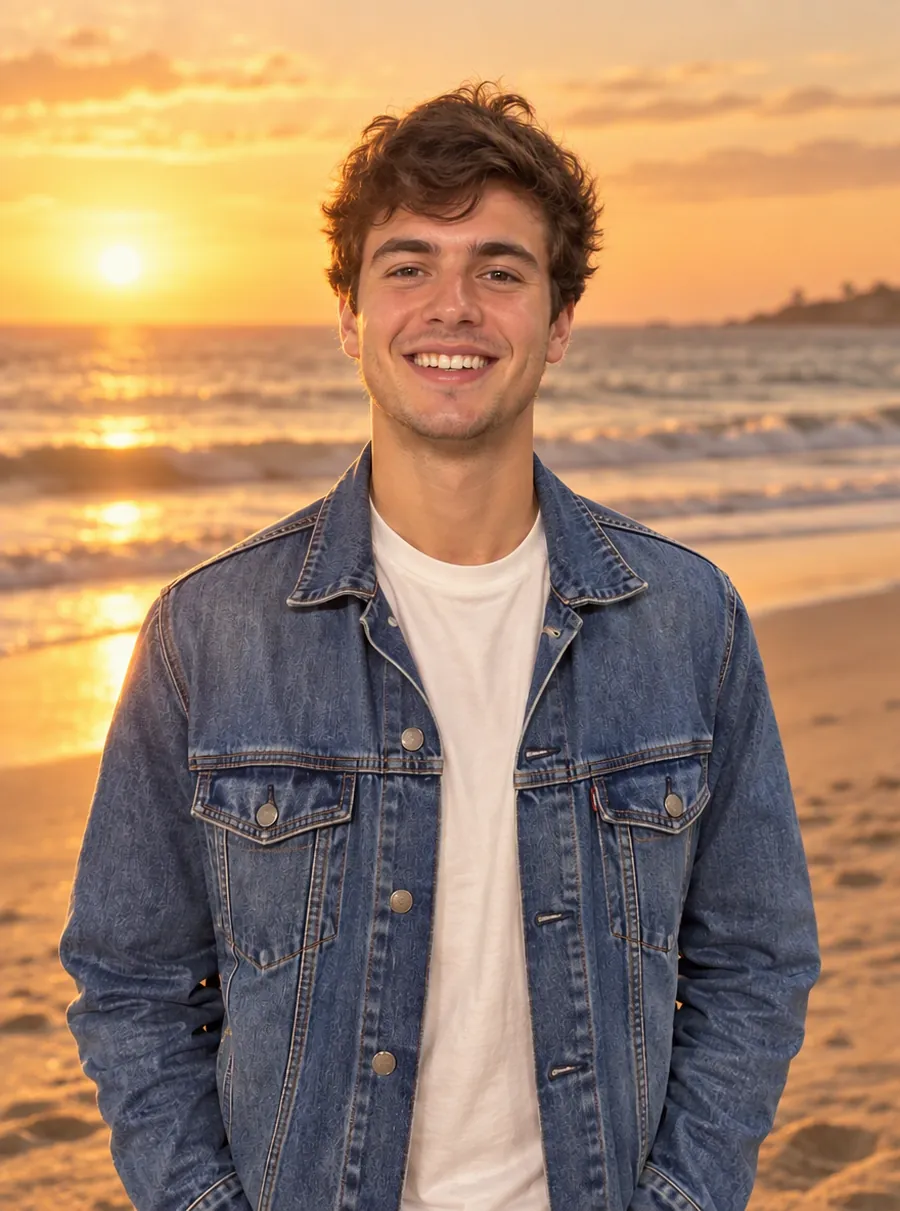
AI Photo Editor
Upload a photo and type what to change. Remove objects, swap backgrounds, fix blur and restore old photos with an AI image editor online. Free daily edits.
Bring out what your photo already has
Upload a picture, add a prompt if you like, and compare the two versions side by side.