
Name an object · Pick a color
Recolor an Image by Describing the Object and Color
For a recolor image edit, upload your photo and name the object and its new shade. Preview a teal mug, burgundy jacket or navy dress, then check that the texture, lighting and surrounding details still look right.
- Free daily allowance
- No watermark
- Start from your photo
Each standard 1K color preview uses 1 credit
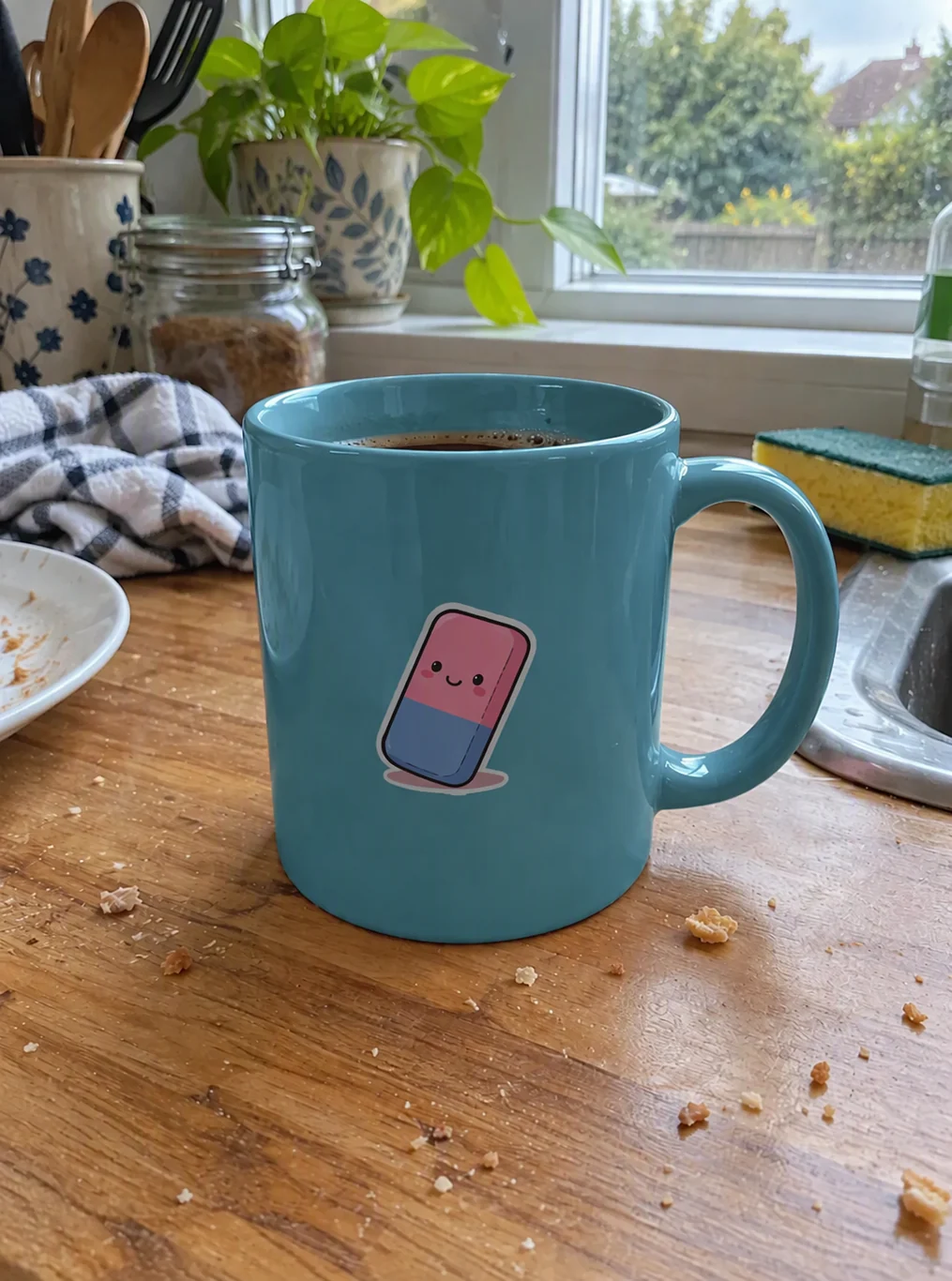
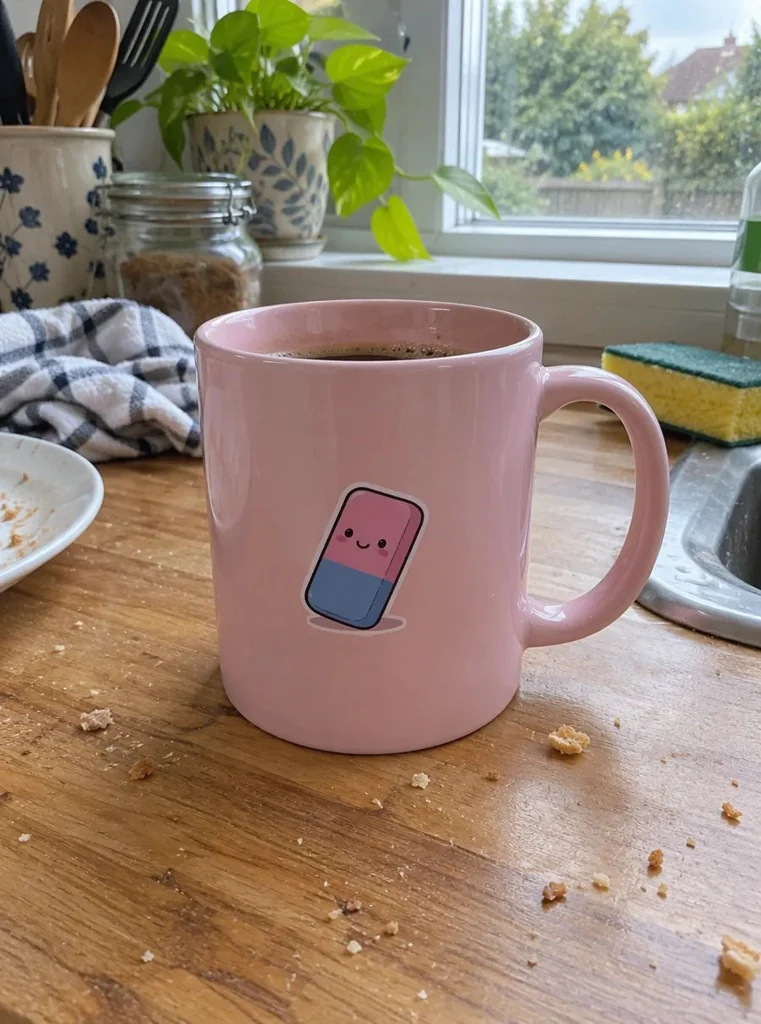
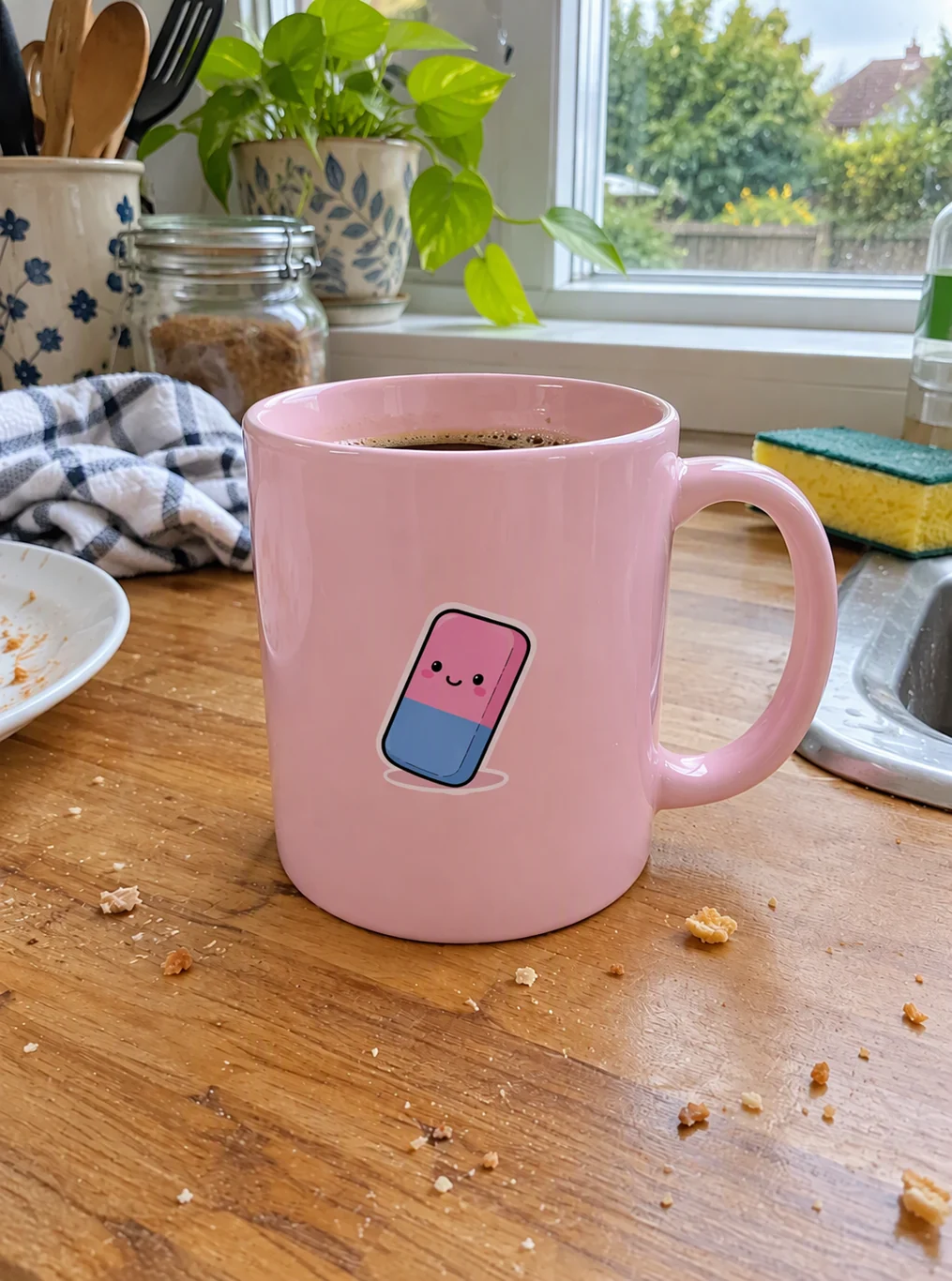
Prompt: “Change only the pink mug to teal blue. Preserve its printed design, ceramic texture, reflections, shape and the kitchen background.”
Actual AI color preview. The mug changes to teal; check small artwork, reflections and surrounding details against the original.
More examples, with the details to check
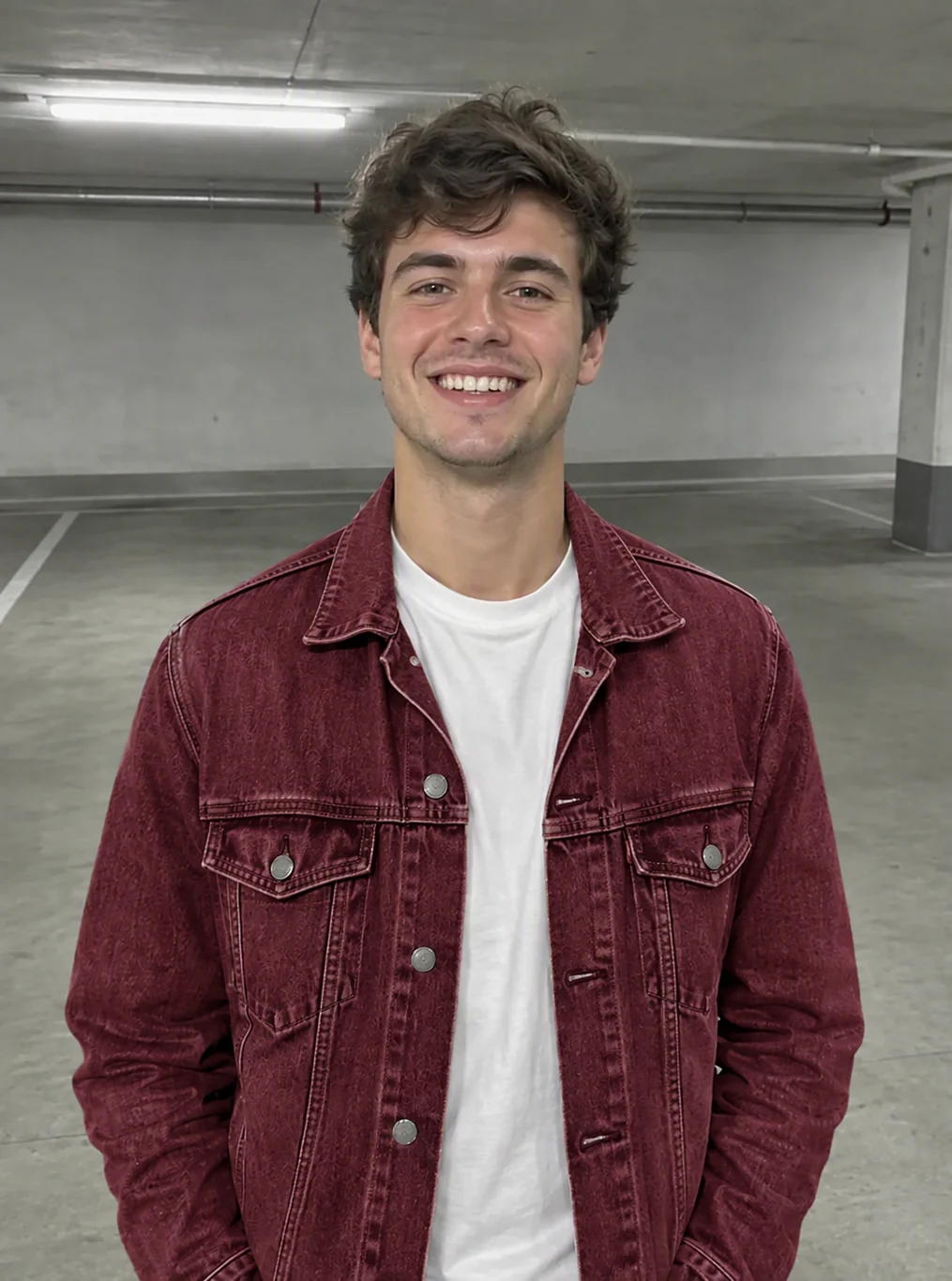

Actual AI output. Compare the fabric weave, buttons and the shirt underneath.
Prompt: Recolor only the blue denim jacket burgundy red. Preserve denim weave, seams, buttons, the white shirt, face and garage background.
Change object color with one written instruction
The object color changer works from an ordinary photograph and a prompt. You identify the object by its name, position or current color. Start with a clear original where its edges and surface are visible; a heavily compressed image gives the model fewer details to preserve.
Choose the original photo
Upload a JPG, PNG or WebP, or paste a copied picture with Ctrl+V. If there are several similar objects, decide which one you mean before writing the request. "The mug on the left" is clearer than "the cup" when the table holds three of them.
Specify the object and target shade
Write something like "change only the pink ceramic mug to teal blue." Add a material or finish instruction when it matters: matte fabric, glossy ceramic or metallic paint. Mention the nearby things that should retain their colors, such as a white shirt beneath a jacket.
Compare color and surface detail
Check the new shade beside the original. Look at the edges, reflected light, seams, buttons and printed artwork. To compare another color, use the same original again. That makes the versions easier to judge and avoids accumulating small changes from one generated result to the next.
An image color changer for specific objects
Product color previews
Try a different color on a mug, bag or another clearly visible item before planning a new photograph. Ask for the material and highlights to remain consistent. A preview is useful for exploring a palette, but it does not verify a manufactured finish. Check small branding and product details before using a generated image in a listing.
Clothing in a photograph
A jacket or sweatshirt can help you compare warm, cool, dark and muted shades. State whether the whole garment changes and whether buttons, zippers and stitching should stay as they are. White fabric may need more reconstruction when changed to a deep color, so inspect the folds and silhouette. Hair has its own dedicated color preview page.
One object in a busy scene
A parked scooter or a flower can be identified by both its existing color and its position. "Recolor the orange scooter cobalt blue; keep the green bin unchanged" gives the editor a useful distinction. Nearby surfaces may pick up an unintended tint. Compare those areas as well as the object you asked to change.
Background color versus object color
If your request is really a new backdrop, use the background changer and describe the setting there. This page focuses on changing an existing object's color. For black-and-white historical pictures that need plausible colors throughout the scene, photo colorization is the closer match.
Copy a prompt and choose your shade
These examples express a target and the details to inspect. Change the subject and shade to match your photo rather than adding a long list of unrelated edits.
| Prompt | Details to compare |
|---|---|
| Change only the pink mug to teal blue. Preserve its printed design, ceramic texture and reflections. | Artwork, gloss and the handle edge |
| Recolor the blue denim jacket burgundy red. Keep its weave, seams, buttons and the white shirt. | Denim texture and unaffected clothing |
| Turn the gray sweatshirt forest green. Leave the face, hair and room as they are. | Folds, cuffs and surrounding skin |
| Make the foreground woman's white dress navy blue. Preserve the fabric folds and background. | Shape, hems and shadow detail |
| Change the orange scooter to cobalt blue. Keep the dark seat, chrome parts and wheels. | Separate materials and small mechanical parts |
| Change only the green bin to mustard yellow. Preserve its wheels, the scooter and the street. | Lid edges, wheels and nearby objects |
For a subtle result, add "muted," "dusty" or "slightly darker." For a stronger one, describe a deep or vivid shade. A hexadecimal color can serve as a reference in your prompt, but the output is a rendered photograph; exact numeric color values are not guaranteed across highlights and shadows.
What a change color of image request means here
This tool interprets a sentence and generates an edited image. It is useful when you want a plausible new object color with its lighting and texture. It does not provide a color picker that replaces every matching pixel or exports separate editable layers.
For a flat icon, a logo or an interface asset that must use an exact brand value, choose a graphics editor with numeric fill controls. For photography, judge the shade across the surface: a blue cup's highlight should be lighter than its shaded side. Making every pixel the same blue would remove its form.
Details can drift during generation. Look for altered lettering, simplified fabric, softened edges or a tint on the background. Keep your source and the approved output together. When a product's real color matters to a purchase, make sure the image accurately represents that product rather than presenting an exploratory preview as a real variant.
Compare a few colors with daily credits
You can begin without creating an account using three guest credits a day. A free account receives five daily credits. One standard edit at 1K uses one credit, including each extra color variation you request. Daily allowances refresh after 24 hours and unused credits do not accumulate.
Free results download without a watermark. Paid options add 2K and 4K output and larger upload limits; the pricing details explain the available plans and credit packs. If generation fails, its credits are refunded automatically. Download any useful versions while they are available in your history.
Recoloring questions
How can I recolor an image?
Upload a photo and identify both the object and its new color in your prompt. For example, ask for the pink mug to become teal while preserving the artwork and reflections. Run the edit and compare the result with the original. Check nearby objects too, because generative editing can change details beyond the surface you named.
Can I change only one object's color?
Yes, that is the intended use of this page. Name the object precisely, including its position or existing shade if necessary, and say that other items should retain their colors. The instruction guides the model but does not lock pixels outside the object. Review boundaries, skin, background and adjacent items before accepting the generated version.
Will the recolor image tool preserve texture and shadows?
It aims to produce a believable recolored surface, and you can explicitly request the original material, folds and reflections. Preservation is not exact. Fine fabric, small print and shiny edges can be redrawn. Examine those features at full size and try a narrower instruction from the original if the first version changes too much of the scene.
Can I match a precise HEX or brand color?
You can include a color name or HEX reference, but exact color matching is not guaranteed. A photographic surface contains different tones from lighting, material and reflections. Use this editor for visual exploration. When a logo or graphic must meet a fixed brand specification, use a design tool with numeric color controls and verify the exported values.
Is recoloring the same as colorizing a black-and-white photo?
They serve different goals. Recoloring changes a color you specify on an existing object, such as a red jacket becoming blue. Colorization adds plausible color to a scene that has little or none. An old family print may need damage repair first and colorization afterward. Neither process can prove the historical color of an object from a grayscale source.
Can I try several shades for free?
Yes, up to your available daily credits. Guests have three and free accounts have five; each standard 1K color attempt spends one credit. Start each version from the same source so you can compare the shades fairly. You can download the results without a watermark, while larger output sizes and higher quality settings require paid access.
Related tools
See Yourself with a New Hair Color Before You Dye
Try on hair colors with AI before you book the salon. Upload a selfie, type a shade like copper or ash blonde and see it on your own hair. Free daily.

Change a Photo's Background by Describing the Scene
Change the background of a photo with a text prompt: plain white, a sunset beach or a modern office. AI builds the new scene around your subject.
Remove Shadow from Photo with a Simple Prompt
Remove distracting shadows from photos with a written prompt. Try product shots, portraits and photographed paper, then compare the lighting. Free daily credits.
AI Photo Editor
Upload a photo and type what to change. Remove objects, swap backgrounds, fix blur and restore old photos with an AI image editor online. Free daily edits.
See the next color on your own photo
Choose one object, describe its shade, and compare the material and lighting before saving.